The last time this blog covered Windows was 1.3.0, the release that brought Workflows, the AI assistant and the Direct3D Cube Viewer. Since then the Linux app has moved quickly, and by 1.4.4 it had become the reference: Windows 1.4.0 began as a parity plan measured against Linux, item by item, rather than as a list of ideas. The measuring turned out to be the productive part. It found coordinates that were wrong by tens of arcseconds on modern headers, which no feature list would have.
1.4.0 reached the Store on 25 September and 1.4.1 followed on the 26th, shaped by what testing the published 1.4.0 turned up. Rather than two posts a day apart, this one covers both. If you are new to Verbinal for Windows, the 1.3.0 post is still the tour of the app; this one is about what is new.
Cutouts: only the part of a file you need
A MegaPipe tile is 1.6 GB. If what you want is a galaxy in one corner of it, downloading the whole tile costs most of an afternoon and a good share of your disk. 1.4.1 adds cutouts, and there are two ways to make one.
Cut by CADC. Where the archive offers its SODA cutout service for a file, CADC cuts the region on its side and sends only that: a few megabytes of the tile, at full resolution. In an observation's Files tab every file has a Cutout… button — live where CADC can cut the file, greyed with the reason where it cannot — and Research has one for the observation you are looking at. It opens an editor: a circle or box by RA, Dec and size, in degrees or sexagesimal, or drawn straight onto the file's footprint — drag to move, drag its dot to resize, drag elsewhere to draw — and, for a cube, a wavelength range. It starts from your last search's target and wavelengths when they fall on the file, checks as you type (off the file, partly off, a band the file does not have), and estimates the size before you commit.
The cutout downloads like any other download, in the status bar and carrying on if you move away, and lands in Research as the observation's record, marked Cutout with its region and opening with a note that it is not the complete observation. Original observation takes you back to the whole thing — in Research if you already have it, otherwise found in Search by its observation ID. And Search's Spatial cutout and Spectral cutout boxes now do what they say: a row's download is cut to the search's circle and wavelengths.
Cut on this computer. Once a file is downloaded, you can cut pieces of it locally: at once, offline, as often as you like — and for files CADC will not cut at all, such as those in its HST mirror. It is the same button and the same editor; when both ways are open to a file, Cut by chooses between them, and the size shown for a local cut is exact rather than estimated.
A local cutout is meant to be something you can hand to other tools without apology. The pixels are copied, not converted — the same BITPIX, the same scaling. The header is the file's own, with its size, every reference pixel and pixel section put right for the cut, SIP distortion still valid, and a HISTORY line saying where it came from. It records where it sits in its parent (LTV/LTM), so DS9 and IRAF show the original file's pixel numbers on it — which is how a MegaPipe catalogue, written in tile pixels, still lines up. Every HDU carries a fresh CHECKSUM and DATASUM that astropy and fitsverify accept.
- Multi-extension files keep their shape. An HST frame keeps the SCI, ERR and DQ of the chips the region falls on; a MegaPrime frame keeps its CCDs, each cut by its own sky coordinates; or you tick exactly the images you want under Images. A region in the gap between chips is refused rather than returned empty.
- Cubes are cut to the box on every plane, or to a wavelength range — on a wavelength, frequency, energy or wavenumber axis, or a velocity axis with its line's rest frequency.
- fpack files compressed the CFHT way (
RICE_1, 16-bit) are cut to a plain.fits, decompressing only the tiles the region touches. - Weight maps come along. A MegaPipe tile's
.weightmap is offered under Also cut and cut with the very same pixel box. That the two lie on the same pixels is checked, not assumed: the same sky at every point of a grid across the image, to a hundredth of a pixel. - A file that cannot be cut says why — no sky coordinates, only approximate ones, galactic or B1950, compressed another way (with the
funpackadvice), or cut short.
A few megabytes of a 1.6 GB tile, at full resolution — cut where the data lives, or on your own machine from the file you already have.
Marks on images and cubes
1.4.0 lets you draw on your data. Boxes, circles, callouts and text go on FITS images and on cubes, pinned to the sky, to image pixels, or to a cube channel, so a mark on a source stays on the source when you pan, zoom or reopen the file. A Marks panel lists, filters and styles them — colour, weight, label size, outline — grips resize the one you have selected, and every shape carries its label on a leader.
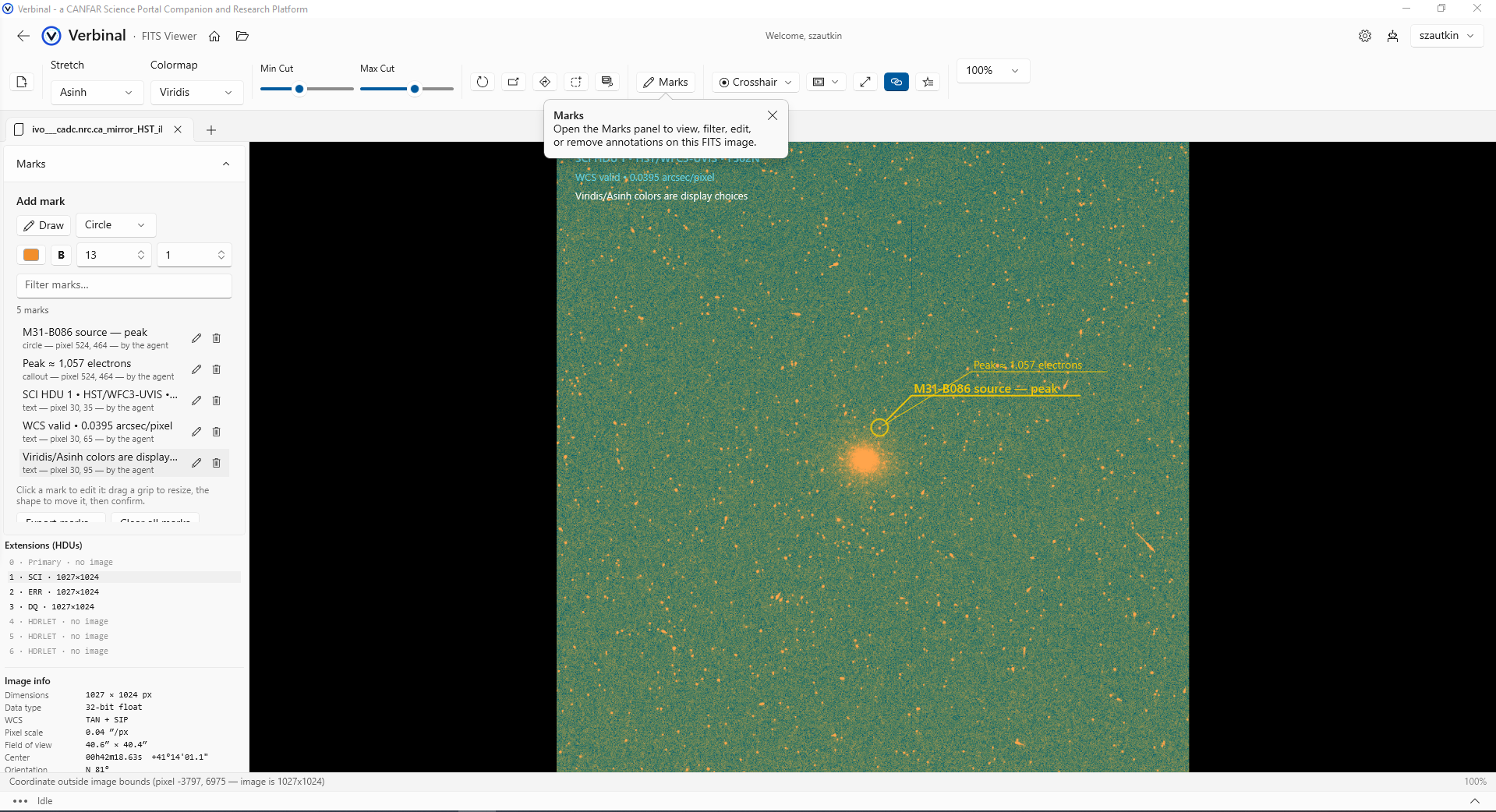
Right-click a mark, or press the Menu key, and it has a menu of its own: edit the label, copy its coordinates in a form the Search box reads, centre on it, search here, export a figure around it, or delete it. Since 1.4.1 an image opened from Research also offers Cut out…, so a mark on a source is one step from a cutout of it. Marks are stored per file — and per extension in a multi-extension file, because a MegaPrime frame holds one image per CCD and a pixel mark on one CCD has no business reappearing on another. They export as JSON with provenance or as a DS9 region file.
Figures with the marks on them
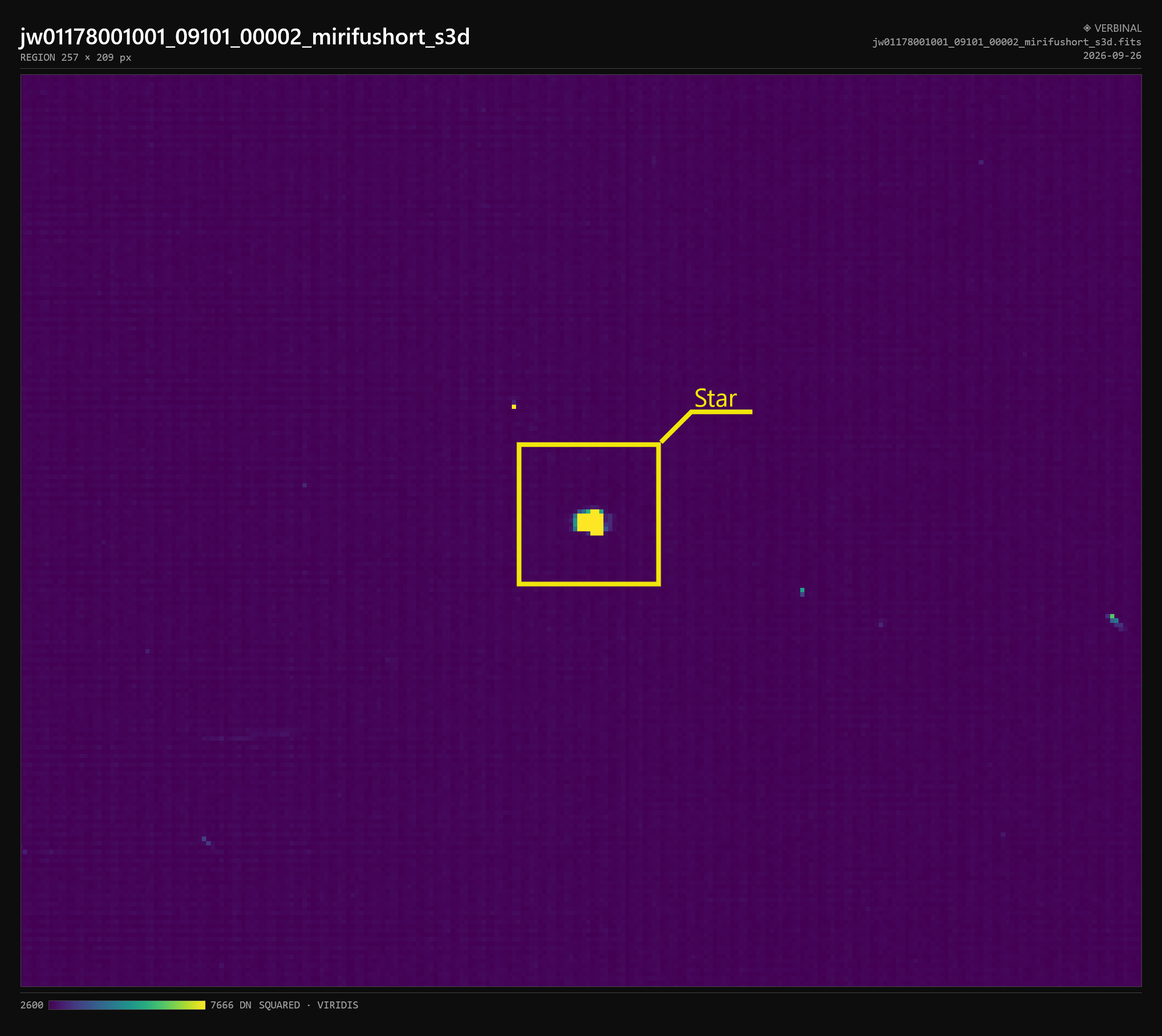
Also in 1.4.0: the FITS Viewer exports figures. Export the whole view, or select a region — the Select area button, or Ctrl-drag — as PNG or PDF at 1×, 2× or 4×, with a header and footer, your marks, a dark or light theme, and a transparent background if the figure is going onto a slide. Cube figures carry their marks too. A 4× figure too large to render reports the scale it actually achieved rather than quietly handing you less.
An assistant that can see, point, and wait its turn
Verbinal's AI assistant drives the app through the Model Context Protocol, and until 1.4.0 it worked blind: it could read numbers out of an image but not look at it. Now it can. get_fits_image, get_cube_image and get_cell_image hand it what the viewers and notebook cells actually show, so mark the brightest source and label its peak is something it can check against the picture before it tells you it is done. The marks in the screenshot above are its work.
It can also point. list_ui_targets and point_at_ui put a hint on a control on screen — even one inside a section somebody has folded shut — which is what powers the guided tour every screen now has. In 1.4.1 that reaches into dialogs, and open_settings opens Settings at the right section, so an assistant can show you where something is set. It does not set it for you: settings stay yours, and some — the MCP server and auto-apply, service endpoints, the compute image, sign-ins — only you should touch.
1.4.0 added 31 tools, and the count is now past 170. Any MCP client can use them: AGENTS.md, in the repository and in the app's install folder, tells Codex, Copilot, Cursor, Gemini and the rest how to connect, written for the agent to follow. An activity bar shows what the app and an agent are working on, two short sound cues mark when an agent starts and finishes, and changes waiting for your approval now survive a restart of the app.
Two 1.4.1 fixes matter more than their size suggests. The first is about restarts. Closing Verbinal used to leave each assistant's MCP bridge stuck, answering nothing, until you reconnected it by hand — and an assistant started before Verbinal gave up on it for the whole session. The bridge now answers “not running” at once while Verbinal is closed, answers the assistant's handshake itself, and picks the connection up when Verbinal starts.
The second is about control, and it was found in testing. start_background_apply would start any pending change an assistant asked it to — including a destructive one waiting for your approval. It now starts only what auto-apply would have applied without you. A destructive change — removing a file, stopping a session, deleting from storage — always waits for you, and every tool that proposes a change now ends its description with that rule, taken from the same code that enforces it.
Remote Compute: the code your assistant runs, in view
An assistant could already run code on CANFAR with run_code, and until 1.4.0 that left no trace in the app. Remote Compute is the screen for it: the verbinal-compute session's state with Start and Stop, every run — the assistant's and your own — with its code, output and errors, and a box to run a Python or Bash snippet yourself. It uses your own CANFAR allocation and is off until you choose a compute image in Settings; until then it explains how to set one up, with a link to the verbinal-execution watcher image.
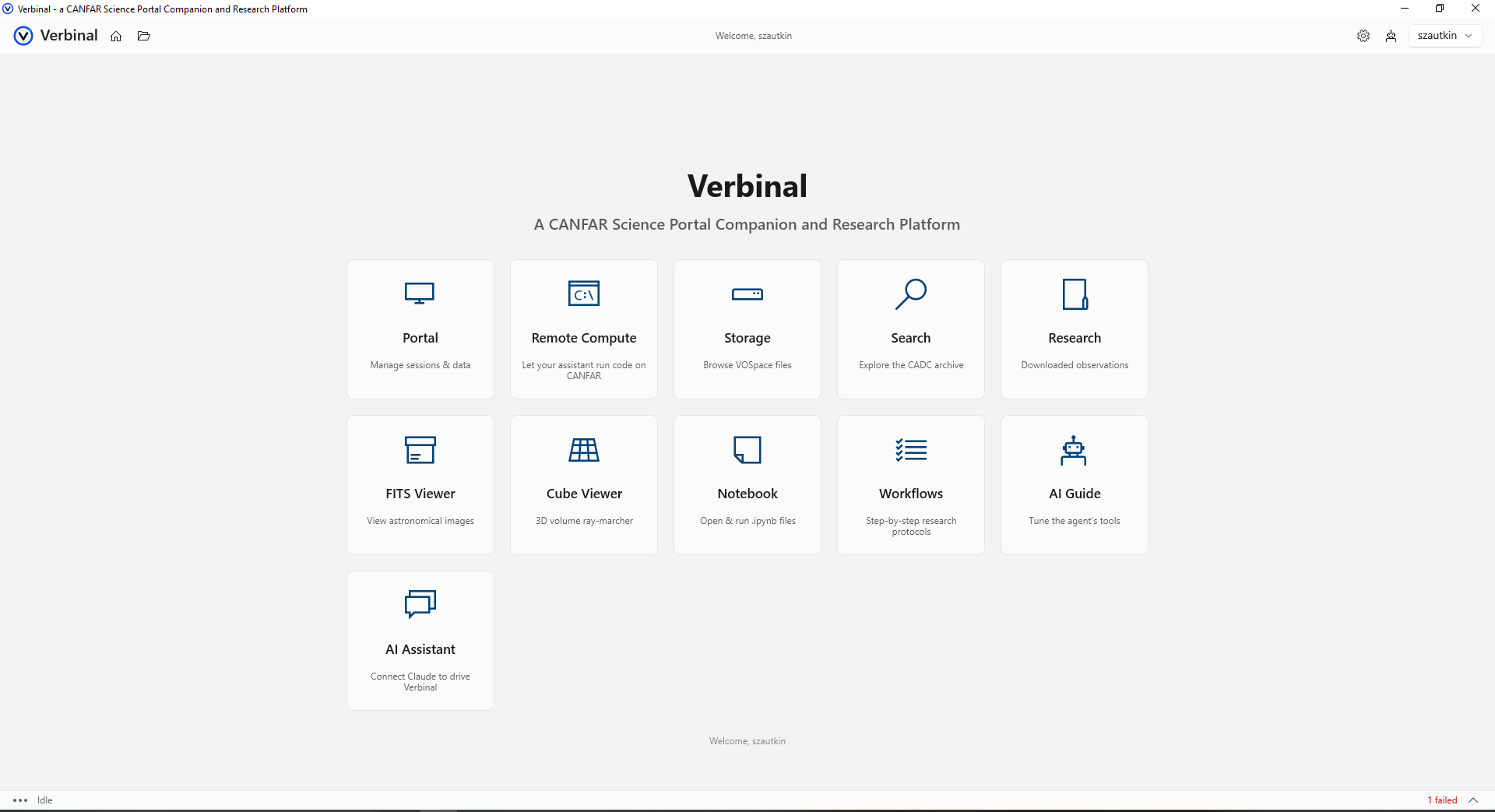
The Portal marks the session as the assistant's, the activity bar shows a run while it is out, and with Follow agent activity on, the app brings Remote Compute to the front when an assistant runs code — so the run happens in front of you rather than behind your back. It has its own tile on the home screen, between Portal and Storage, and like them it stays locked until you sign in, however it is reached: its tile, a workflow step, or an assistant's navigate_to.
The Portal, laid out as on Linux
The Windows Portal used to give the launch form two thirds of the page whether or not you were launching anything. In 1.4.1 it takes the layout Linux arrived at: platform load, storage and batch jobs across the top; active sessions the full width; then the CANFAR images beside your recent launches — and a single column in a narrow window. Launch session opens the form in a dialog, Use this image opens it with that image chosen, and a launch that fails brings the form back as it was, with the reason.
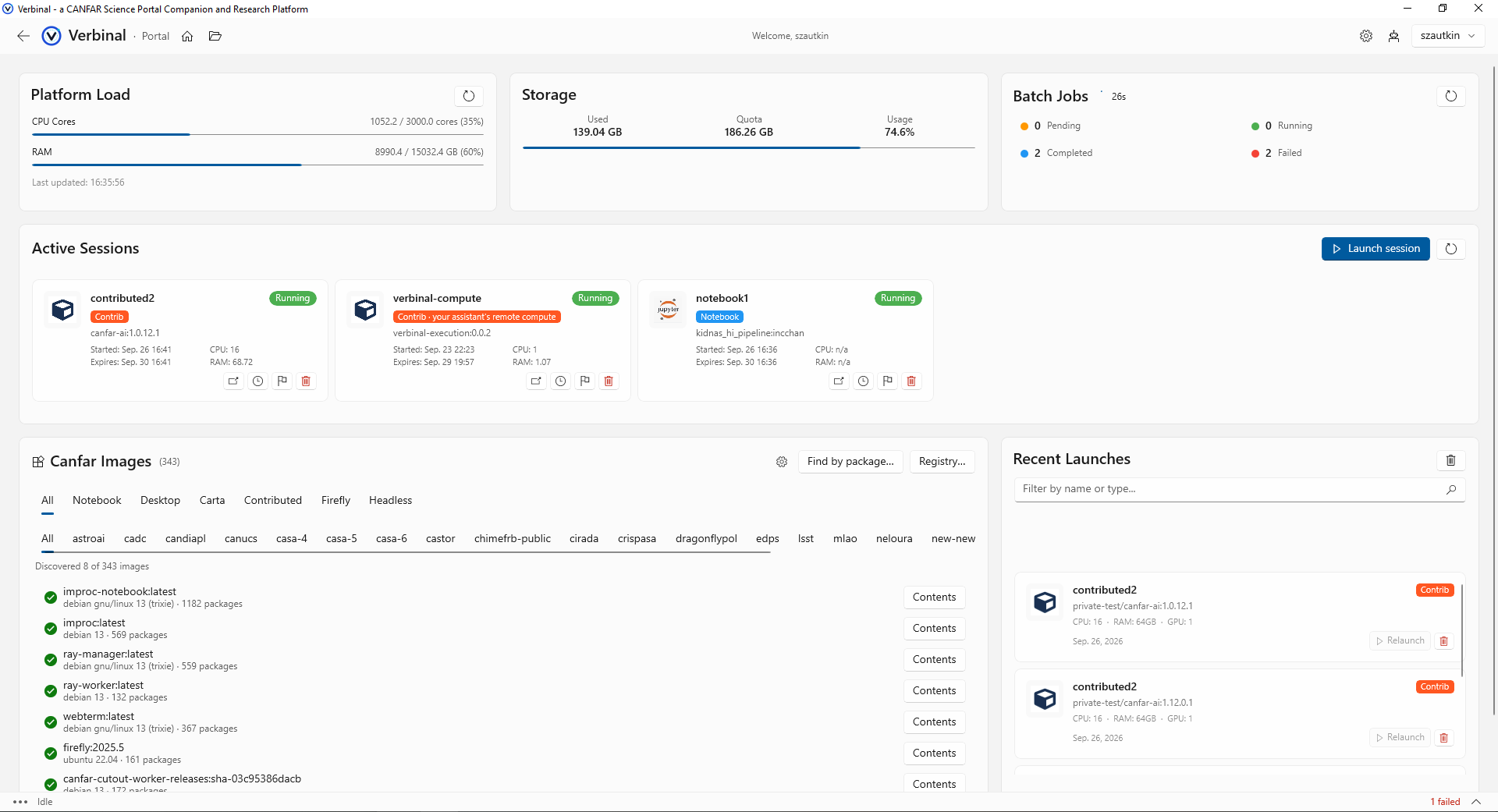
The images card changed in both releases. 1.4.0 added a search of the container registry behind the platform, for images the curated catalogue does not list, and a view of what is installed inside an image before you launch it. 1.4.1 filters the card the way Linux does, by one shared set of rules: only images a launch can start — the desktop-app images, applications published inside a desktop session, are gone from it — with session type as a row of chips, All first, and project as a second row rebuilt from whatever the type leaves. The reasoning is in the Linux 1.4.4 notes.
Search and Research, day to day
- Copy anything. Right-click any cell in the results to copy its value, the observation's details, or the row — with several rows chosen, all of them — as tab-separated text that pastes into a spreadsheet; Ctrl+C does the same. The details read the same from every screen, down to the position written the way the Search box, Simbad and DS9 read it.
- Keep an observation without its file. Save to Research keeps its details and a place for notes without downloading anything. Remove file frees the disk and keeps the notes, and Download brings the file back — for a cutout, the same cutout.
- A click opens the observation. Five columns used to be silent filter links, so clicking a target name narrowed the table instead of opening the row. A click anywhere on a row now opens it at once; narrowing to a value moved to the right-click menu.
- A long search can be cancelled. Cancel appears beside the spinner, on the form and in the ADQL editor, and the results already shown stay.
- ADQL is checked before it runs. The editor validates the query against the service's
TAP_SCHEMAas you type, lists each problem (click one to jump to it), and keeps Execute disabled until the query can run. Queries from the editor are now kept in Recent searches too. - Notebooks open percent-format
.pyand.mdfiles as cells and save them back in their own format; outputs render SVG, Markdown, LaTeX and HTML; and, as in Jupyter, a cell ending in an expression shows its value.
What measuring found
The fixes in these two releases came from two places: measuring Windows against Linux 1.4.4 for 1.4.0, and testing the published 1.4.0 from the Store for 1.4.1. Some were wrong answers rather than rough edges, and those are worth saying plainly:
- Rotation on modern headers. Headers that describe rotation with a
PCmatrix — JWST's among them — had it ignored. The scale stayed right and the rotation silently became zero, so the error was nil at the reference pixel and grew toward the edge of the frame, to 40–90″. The crosshair, Go To, cross-tab sync, marks and the assistant's sky readouts were all off by that much. The tests that should have caught it passed at a tolerance eleven pixels wide; they are tighter now, and reach the far corner of the frame, where a rotation error is largest. - Distortion, the other way round. On images whose header gives only the forward SIP distortion — HST's calibrated frames among them — going from the sky to a pixel skipped the distortion: up to 6.6 pixels (0.26″) across a WFC3 frame. A position now lands on its own pixel.
- “Public only” never worked. Ticking it made every search fail with “Function [GETDATE] is not found in TapSchema”: CADC's TAP service has no function for the current time. The Linux app found and fixed the same inherited bug in 1.3.7; Windows now writes out the time of the search, as CADC's own search does.
- Proprietary files. DataLink, which every download goes through, was not signed in, so a proprietary observation's files were refused even to their owner. It signs in now, and the token only ever goes to CADC.
- Very large images. Anything over 512 MB was refused, whatever the machine had free. The limit is now the memory actually free: a 1.6 GB MegaPipe tile opens, drawn at 40% while its full pixels stay behind every readout, coordinate, mark and export.
- Downloads that produced nothing were recorded as successful, and a failed or cancelled download could truncate a file you already had. Neither happens now, and JWST products fetch the science file rather than the first listed artifact.
- Viridis was not viridis. The FITS Viewer used a teal-to-orange approximation, and figures went out labelled VIRIDIS. It now uses the Cube Viewer's colour tables, so every colormap looks the same in both.
- Marks and paths. The same file reopened as
C:/Users/…rather thanC:\Users\…, or with other capitals, came back without its marks. A path is now read one way, however it is written. - A French Windows refused “10.68” in Go To's RA and Dec boxes. They now read a position as the rest of the app does: a decimal point or a comma, or sexagesimal.
- 32-bit Windows. The x86 packages of 1.3.2 and 1.3.3 carried a 64-bit MCP bridge, so an assistant could not connect. Each package now builds its own bridge for its own architecture — and 1.4.0 adds ARM64 packages alongside x64 and x86.
Privacy, source, and how to get it
The privacy posture has not moved. No analytics, no telemetry, no third-party services; your credentials stay in the Windows Credential Manager, and traffic goes directly to CANFAR and CADC over HTTPS. The one new thing to know is small: a cutout by CADC sends CADC the region you asked for, which is how it knows what to cut. A cutout on your computer sends nothing at all.
Verbinal for Windows is free and open source under the GNU Affero General Public License v3.0, with the full source at github.com/szautkin/CanfarDesktop and 3,400+ tests that GitHub Actions now runs on Windows for every push, with CodeQL beside them. It runs on Windows 10 (1809) or newer, on x64, x86 and ARM64; notebooks need Python 3.8+. Search and both viewers work without signing in; Portal, Remote Compute and Storage need a free CADC account.
Get Verbinal for Windows 1.4.1
Free and open source under AGPL-3.0. Windows 10 (1809) or newer on x64, x86 or ARM64, and a free CANFAR account. Search and the viewers work without signing in — and your data stays on your machine.
