The last time this blog covered the Mac was 1.3.0, the release that brought the Cube Viewer. Three quieter releases followed over the summer: 1.3.1 added Settings ▸ Endpoints and the FITS Viewer's own figure export, 1.3.2 added Workflows and French for every string in the app, and 1.3.3 was a reliability pass on Storage. Meanwhile the Windows app moved ahead, and Windows 1.4.1 became the measure: Mac 1.4.0 began as a plan to catch up with it, item by item.
Then came two full test passes, run by an AI assistant driving the app through its own tools, case by case, with a person watching the screen. They found more than the plan did — wrong pixels, wrong positions, wrong answers to the assistant — and much of this release is what they found, put right. If you are new to Verbinal for macOS, the 1.3.0 post is still a good tour of the app; this one is about what is new.
Cutouts: only the part of a file you need
A MegaPipe tile is 1.6 GB. If what you want is one galaxy in a corner of it, the whole tile is most of an afternoon's download and a good share of your disk. 1.4.0 adds cutouts, and there are two ways to make one.
Cut by CADC. Where the archive offers its SODA cutout service, CADC cuts the region on its side and sends only that: a few megabytes, at full resolution. Cut Out…, in an observation's detail in Search and in Research, opens an editor on the file's footprint: a circle or a box, RA and Dec in degrees or sexagesimal, sizes in arcminutes, and for a cube a wavelength range in nanometres. It starts from what your search asked for, checks as you type — off the file, partly off, the wrong shape for this file — and tells you the size it will be before you commit. And Search's Spatial cutout and Spectral cutout boxes, as on CADC's own search page, make Download fetch only the part of a file within the search's circle, or its wavelengths.
Cut on this Mac. Once an observation's file is downloaded, you can cut it locally: at once, offline, as often as you like — and it is the only way for files CADC will not cut. A local cutout is meant to be handed to other tools without apology:
- The pixels are copied, not converted — the same
BITPIX, the same scaling. - The header is rewritten so the same sky lands on the same pixel:
CRPIXmoved,LTV/LTMrecording where the cut sits in its parent, SIP distortion kept valid, aHISTORYline saying where it came from, and a freshCHECKSUMandDATASUM. - Mosaics keep the images you choose, and cubes are cut to the channels of a wavelength range, whether the axis is frequency, wavelength, wavenumber or velocity.
- fpack files compressed with
RICE_1are cut by decoding only the tiles the region touches, and the cutout is written uncompressed. - Weight maps come along. A MegaPipe tile's weight map can be cut beside it with the very same box, once Verbinal has checked that the two lie on the same pixels. A file on another grid is offered greyed out, with the reason.
A cutout is kept in Research beside its observation, marked with what it was cut from and where, with a way back to the complete observation; downloading it again cuts it again.
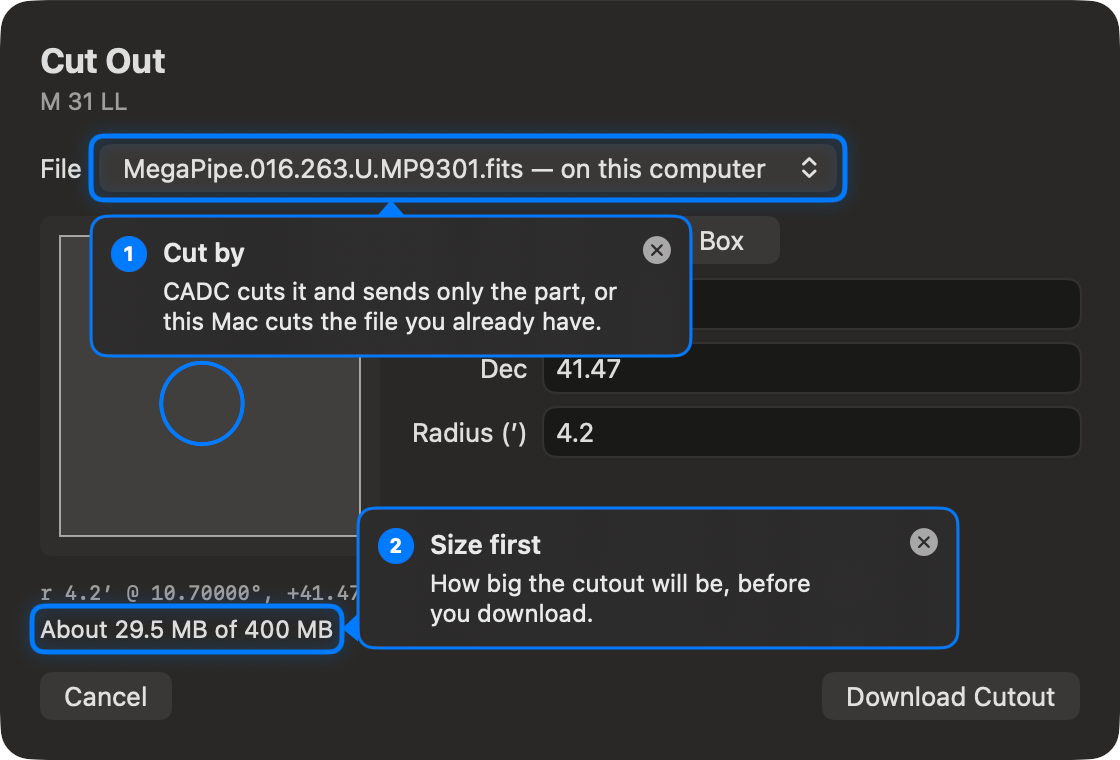
A few megabytes of a 1.6 GB tile, at full resolution — cut where the data lives, or on your own Mac from the file you already have.
Marks on images and cubes
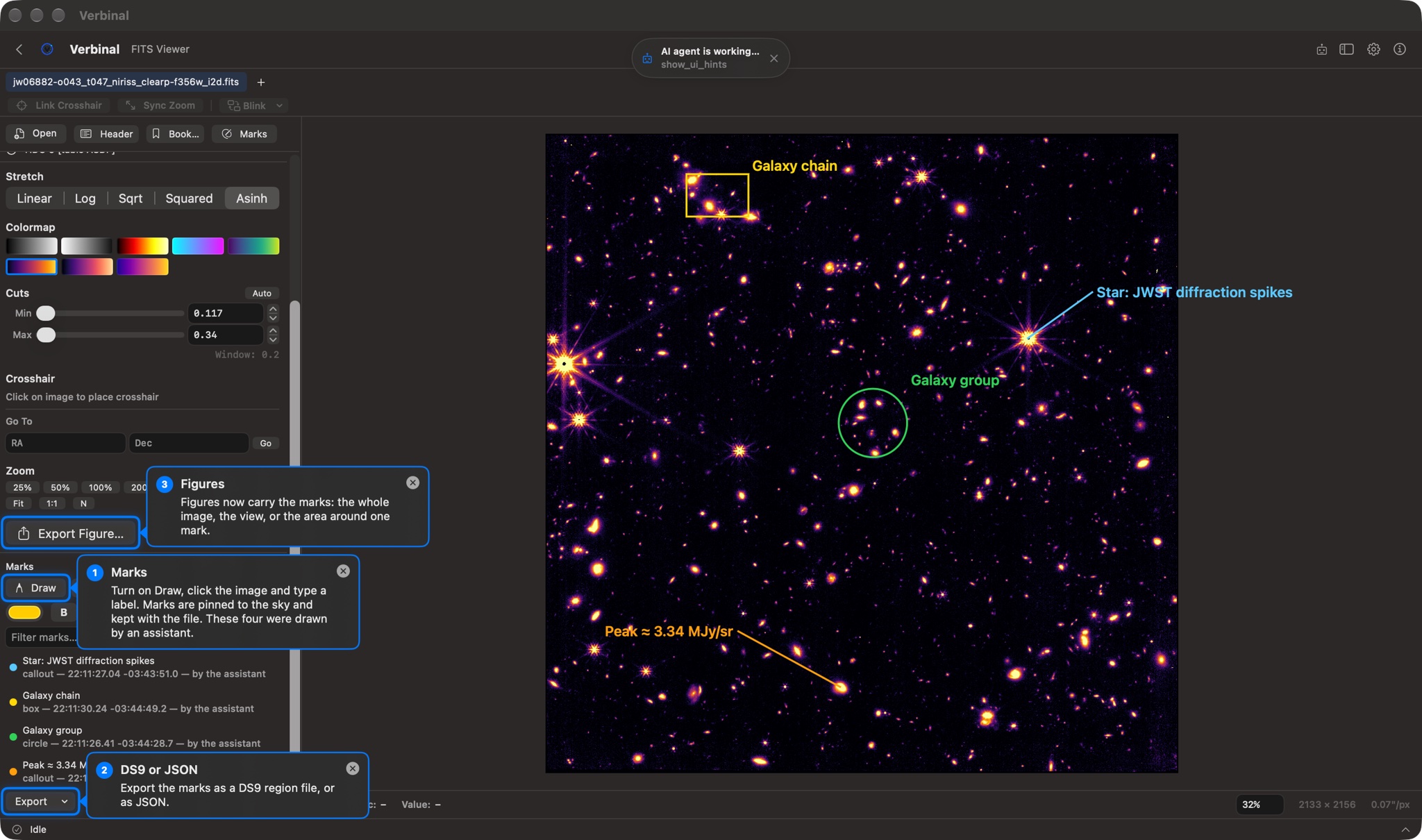
You can now draw on your data. Turn on Draw in the FITS Viewer's new Marks panel, click the image — or drag to size the mark — and type its label: a circle or a box around a source, a callout with a leader line to its label, or a label alone. Drag a mark to move it, a corner grip to resize it, double-click to rename it. Right-click it to copy its position in the form the Search box reads, centre on it, search there, export a figure around it, or delete it.
When the image has a WCS, marks are pinned to the sky, so a mark finds the same place in another image of the field. They keep their size on the subject as you zoom, turn with the view, and are kept with the file and its extension — however its path is spelled — so they are there when you open it again. The panel lists them with a filter, and sets colour, bold, label size and outline. They export as a DS9 region file (sky in fk5 with sizes in arcseconds, pixels counted from 1 as DS9 counts them) or as JSON.
Cubes have marks too. A cube mark lives on a channel: it is drawn on the slice showing that channel, Centre on Mark takes you there, and the volume shows every channel's marks where they sit in the cube. Your assistant can draw marks as well, and its marks say so.
Figures, and spectra that open as spectra
Export Figure in the FITS Viewer now draws the image's marks and labels — a Marks toggle turns them off — and shows either the whole image or the view on screen, as PNG at 2× or 4×, or as PDF. A mark's menu has Export Figure Around Mark…. The legend gives the figure's own centre and field of view; its “Center” used to be the WCS reference point, which is often not the middle of the image at all. The Cube Viewer's figures draw the cube's marks too: on a slice, those of the channel shown; in the volume, where they sit.
A FITS file whose data is a table used to open as a blank image a row of bytes tall — HST's _x1d spectra came out 38946×1. Now a spectrum opens as a spectrum: flux against wavelength, in the units the file gives, each echelle order its own line, the error as a band. A table that holds no spectrum says so and lists its columns. And a spectrum exports as a figure of its own, titled by the object (TARGNAME) and the instrument, with its axis units and error band, and a note of how large the error is — a high-S/N spectrum's band can be thinner than its line.
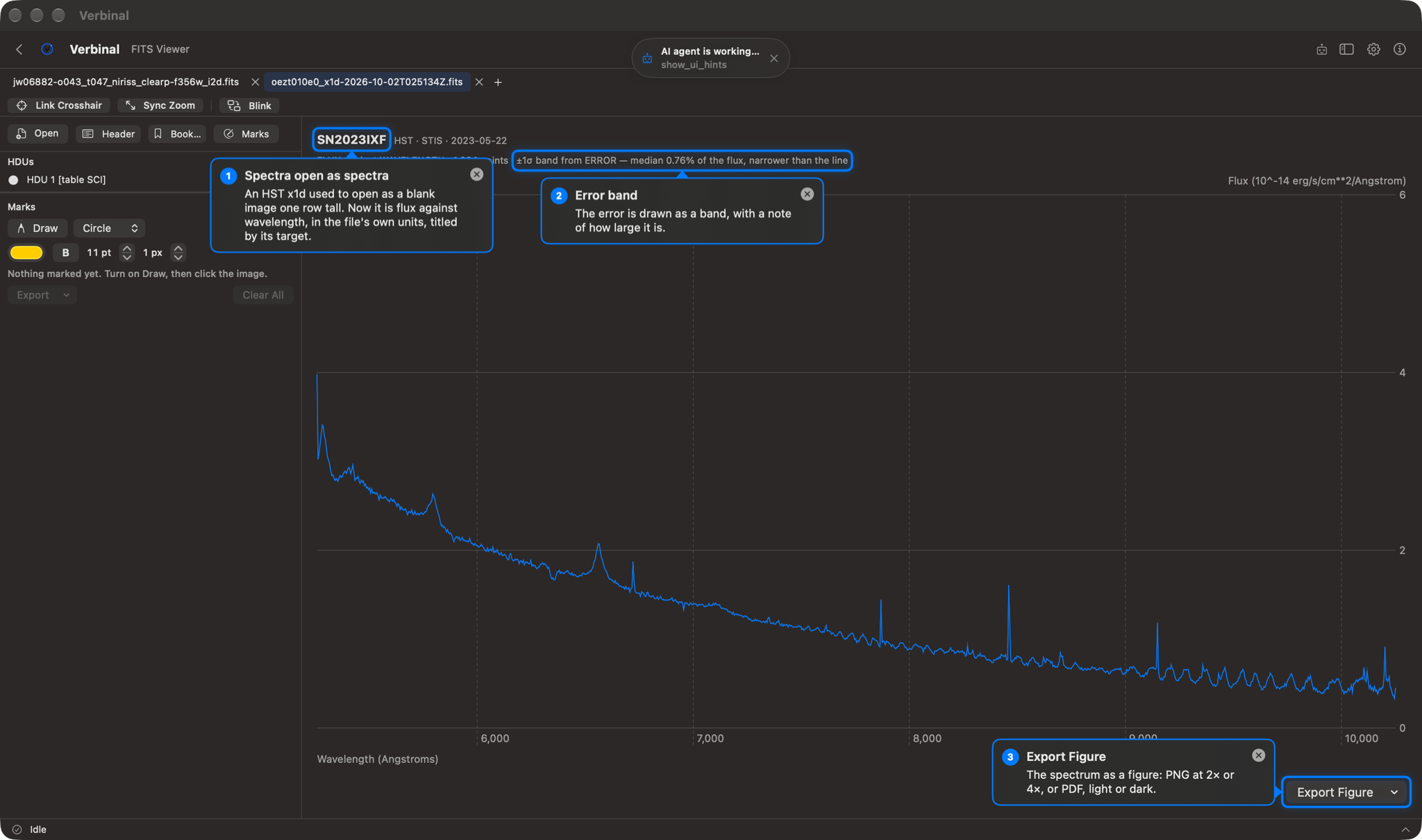
_x1d of SN 2023ixf, which used to open as a blank image one row tall. It now plots as a spectrum, titled by its target, and says its error band is narrower than the line.Your assistant, on your terms
Verbinal's built-in MCP server lets Claude Desktop, Claude Code or any other MCP client work in the app with you, through about two hundred tools. Until now, the rules for that were one switch: Auto-apply, on or off. 1.4.0 replaces the switch with decisions you make in the open.
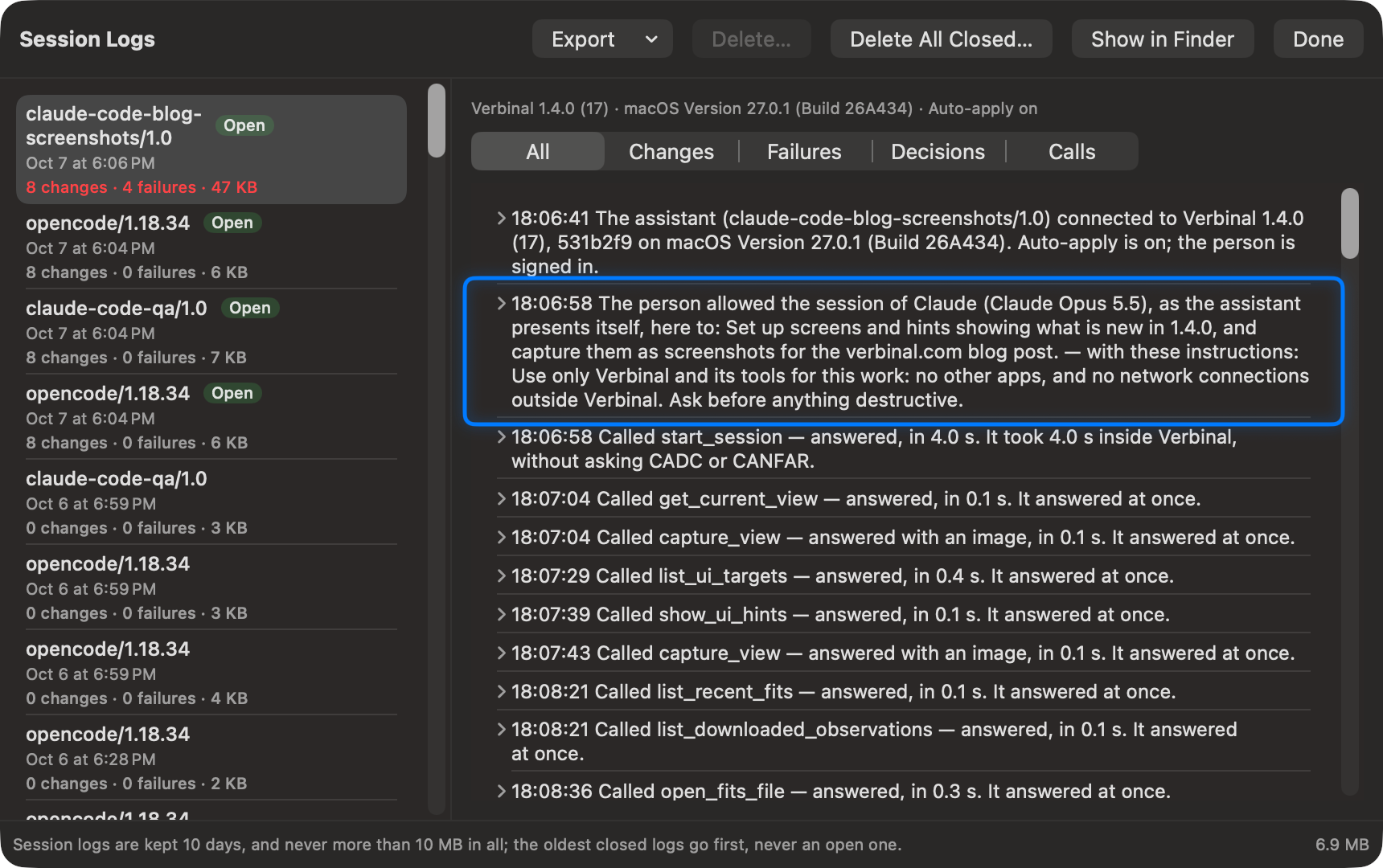
You allow each session. An assistant now starts by saying who it is and what it is here for, and Verbinal comes forward with a window: the client and its connection, the assistant's own description of itself — its own words, which Verbinal cannot check — and the instructions it will be given for this session, up to 250 words, filled from Settings ▸ AI Agent ▸ Session Instructions. Allow, and it receives your instructions word for word. Deny, and it is told to ask you first. Until you allow a session, no tool works but start_session and describe_app.
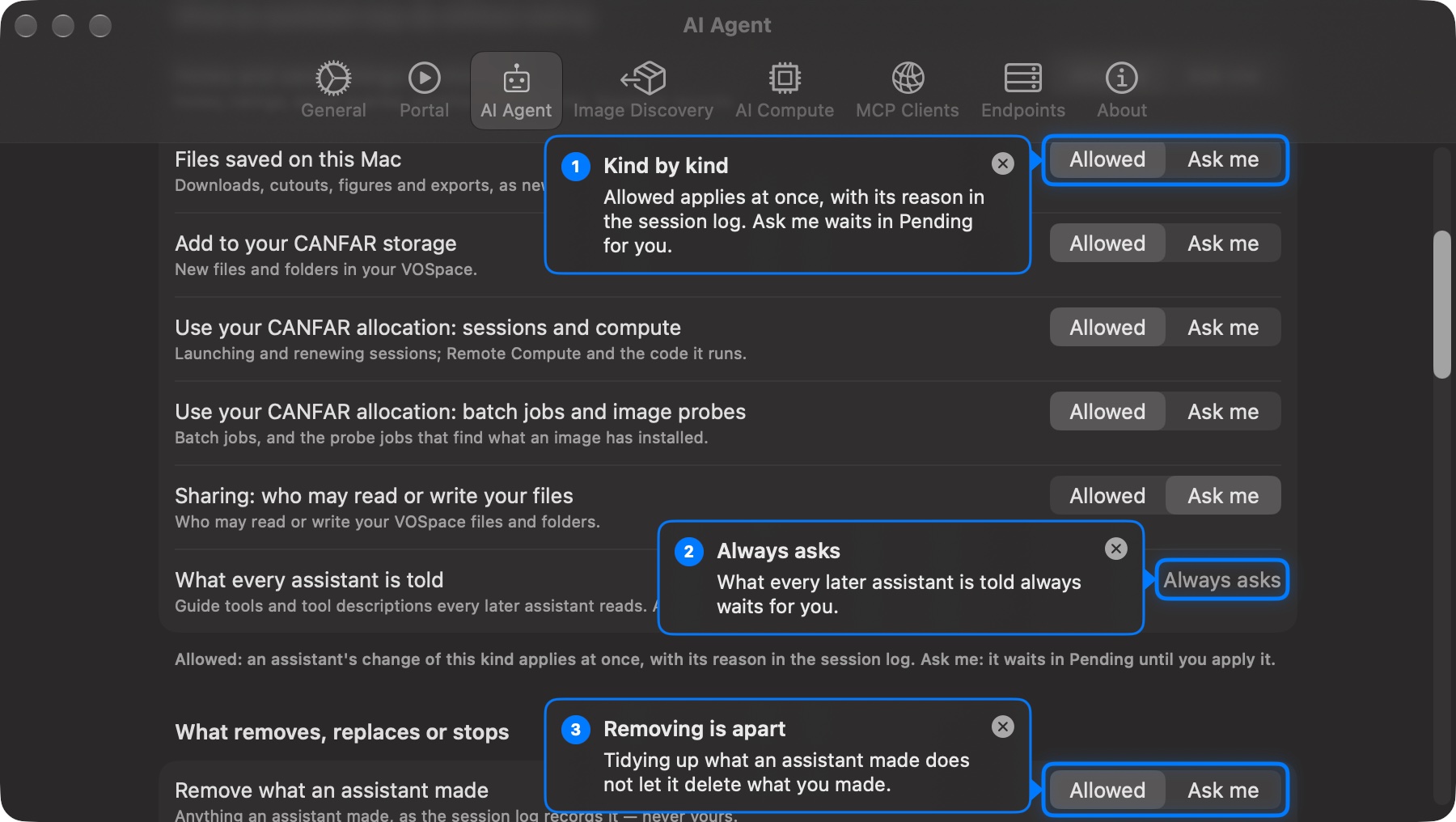
You decide what it may do without asking, kind by kind. Settings ▸ AI Agent lists every kind of change an assistant can make, each Allowed — it applies at once, with its reason in the session log — or Ask me, when it waits in Pending for you. What adds or changes is kept apart from what removes, replaces or stops, so allowing an assistant to tidy up what it made does not let it delete your files. By default notes, saved things, files, uploads, sessions, batch jobs and removing what an assistant itself made go ahead; sharing and every other removal ask. Your old Auto-apply choice carries over.
One kind always asks: what every later assistant is told. Adding or changing an AI Guide tool, or rewriting a tool's description, changes the instructions of every assistant after this one — so an assistant, or text planted in a file it happened to read, could quietly steer the next. Those changes now always wait for you, as deletions do.
Every change says why. Each write takes a one-sentence reason, and Pending shows it under the change — or “No reason given” — so you read why a delete is wanted before you apply it. Pending's History says who applied each change: you, auto-apply, or the assistant's background start. A proposal nobody applies expires after three hours instead of waiting, as one did for six days, to be applied to a world that had moved on. A change that fails says why. And the robot that opens Pending is now in every toolbar, always, with its count.
A log that explains itself. Session Logs, also in Settings ▸ AI Agent, keep each assistant session: every change with who made it and why, the app's own decisions and the rule behind each, every call with the CADC and CANFAR requests it made and what their outcomes mean, and services failing and recovering. Read it session by session, export it as text or JSON Lines, or delete closed ones; it is kept for ten days on your Mac.
Answers within 45 seconds. An assistant's client can give up on a call after a minute, while some of Verbinal's waited two. Every call now answers within 45 seconds; work that takes longer — a 1.6 GB download, a ten-minute image probe — carries on, on a new activity bar along the bottom of the window, which says what is running, who started it (you, your assistant, or Verbinal itself), and why anything failed. Two short sound cues, the ones Windows and Linux play, mark when an assistant starts working and when it has gone quiet.
A bridge that survives restarts. An assistant started before Verbinal used to fail its handshake and give up for the whole session; one connected when Verbinal quit lost its tools until reconnected by hand. The bridge an assistant launches now answers the handshake itself, tells the assistant Verbinal is not running and what to turn on, and connects when Verbinal starts. It speaks every MCP version, the newest (2026-07-28) included.
An assistant that can see, point, and keep its hands off
An assistant can now look. capture_view gives it a picture of Verbinal's front window — whatever screen, sheet or Settings section is showing, with no Screen Recording permission, since the window is Verbinal's own. get_fits_image and get_cube_image return the viewers as you see them, with the map from a point in the picture back to the file's pixel, so mark the brightest source is something it can check against the picture.
And it can point. Verbinal reads its own windows the way VoiceOver does, so every control on every screen, sheet and Settings section can be pointed at, down to each entry of a list. show_ui_hints puts up rings and bubbles with the assistant's words — a numbered tour, or the rest of the window dimmed — placed by rules: bubbles never overlap each other, never cover what they point at, stay in the window and keep off images. An assistant can open a folded section or a sheet, select a tab, and close a sheet as Esc would. It never presses a button that acts, and never changes your settings: open_settings opens the right section, and you do the setting.
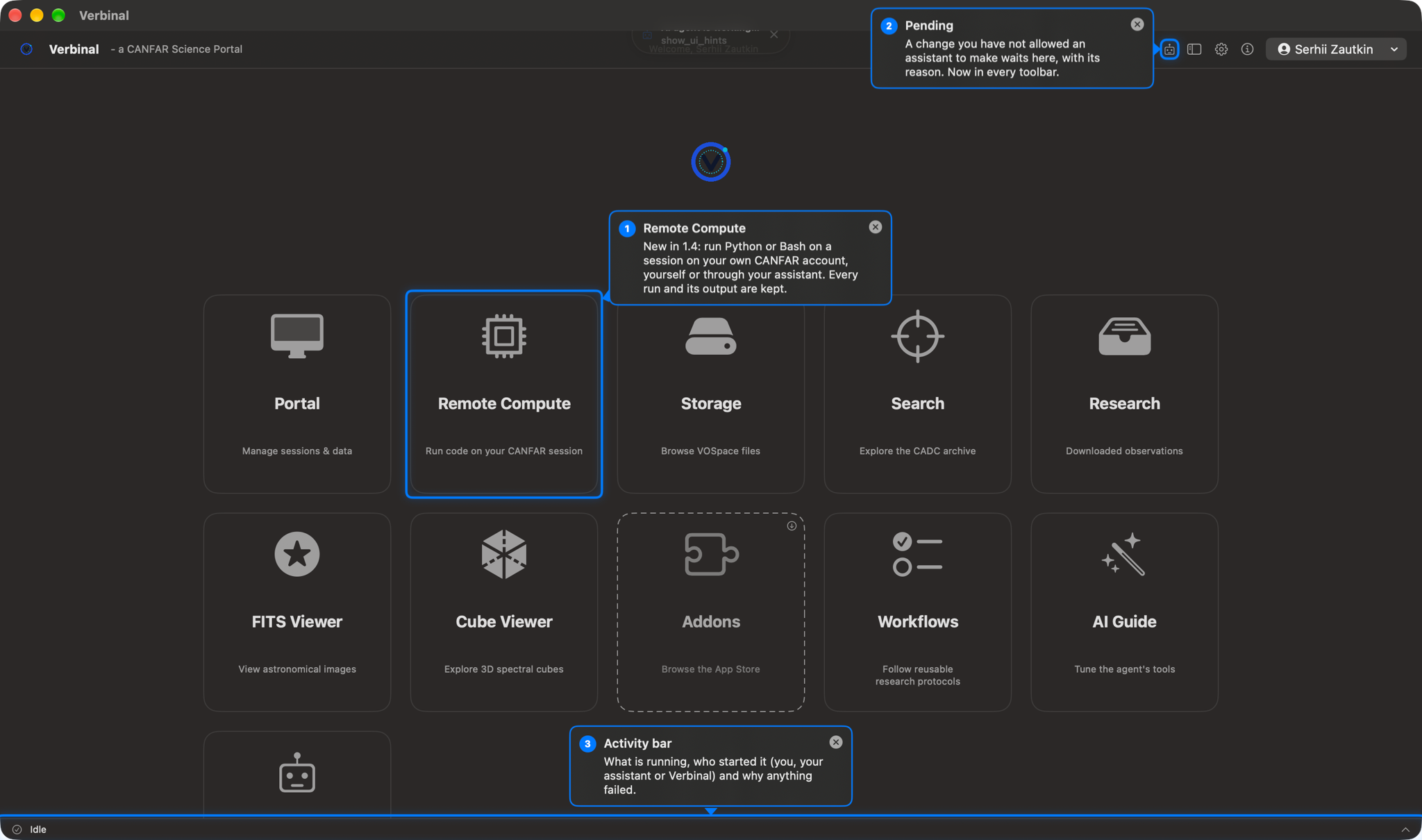
show_ui_hints: the new Remote Compute tile, Pending in the toolbar, and the activity bar. The home screen now runs in the same order as on Windows — Portal, Remote Compute and Storage first.Any MCP client can connect. AGENTS.md, in the repository, is written for the assistant to follow: the command (Verbinal.app/Contents/MacOS/Verbinal mcp), the server name verbinal-canfar, and the entry for Claude Code, Claude Desktop, Codex, Cursor, Gemini, Windsurf and VS Code.
Remote Compute: the code your assistant runs, in view
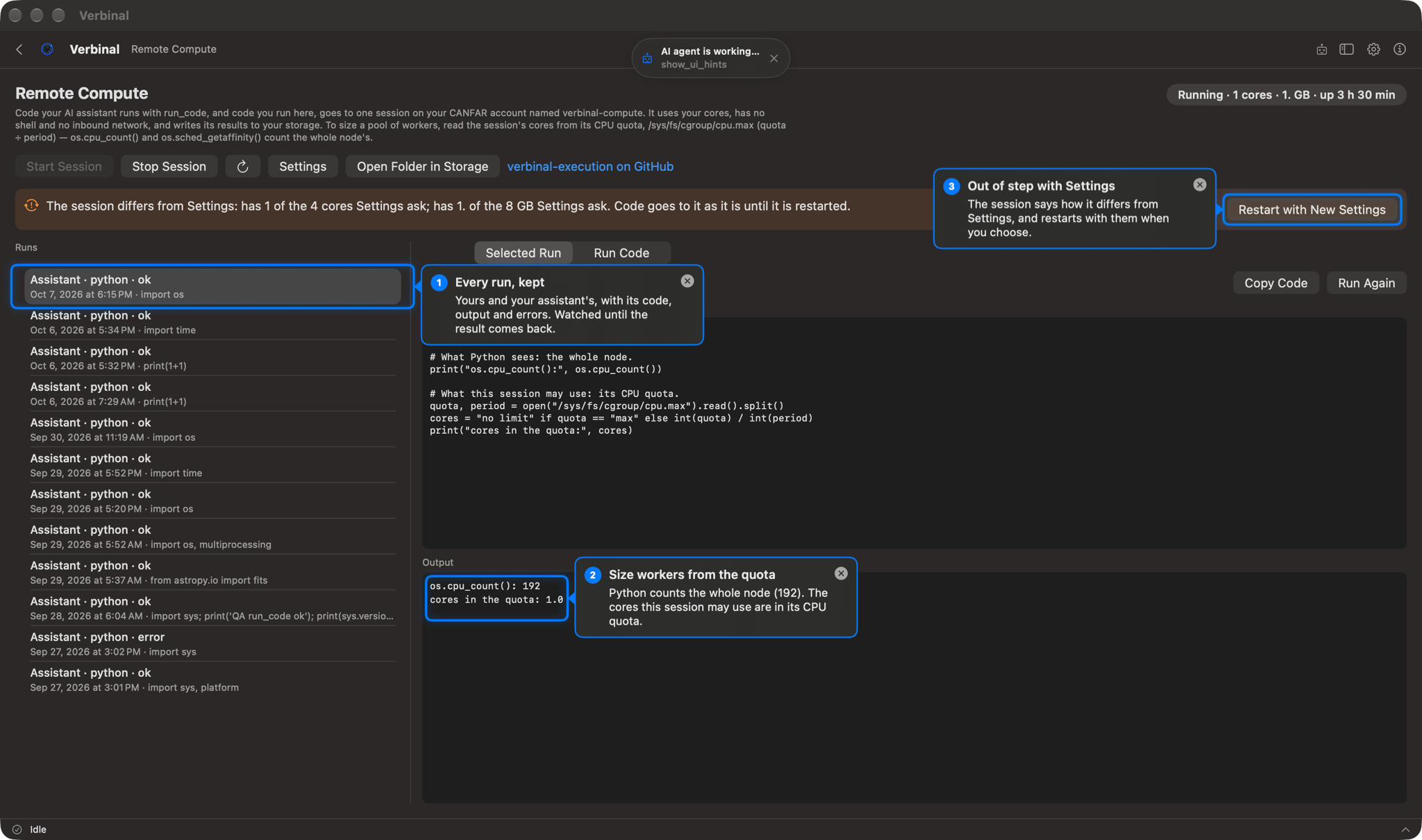
An assistant could already run code on CANFAR with run_code, and the app showed no trace of it. Remote Compute is the screen for it, with its own tile on the home screen: the compute session's state, size and uptime, Start Session and Stop Session, every run — the assistant's and your own — with its code, output and errors and Run Again, and a box to run a Python or Bash snippet yourself. It uses your own CANFAR allocation, and until you choose a compute image it explains what it takes, with a link to the verbinal-execution watcher image.
Every run is remembered, with who sent it, when and how it ended, and is watched until its result arrives, whether or not anyone asks. A run survives signing out and quitting the app: after you sign in, every run still out is looked at again. A session whose image CANFAR could not pull shows Not ready with the reason, instead of “Starting” for ever. A session that no longer matches Settings says how it differs, with Restart with New Settings. And the screen tells you something worth knowing before you size a pool of workers: on CANFAR, os.cpu_count() counts the whole node — 192 — not the cores your session may use. Those are set by its CPU quota, in /sys/fs/cgroup/cpu.max, and the screen says how to read it.
The Portal, Batch Jobs and Storage
- The Portal is laid out as on Linux and Windows: platform load, storage and batch jobs across the top, active sessions the full width, then CANFAR images beside recent launches — one column in a narrow window. Launch Session opens the form in a sheet, the progress window closes by itself once the launch goes through, and a launch that fails keeps the form to put right.
- Session cards show CPU and RAM for every session. A flexible session used to say only “FLEX”; it now shows what it uses, and a fixed one what it was given.
- CANFAR images by type and by project, as chips with counts. Find in Registry… searches the registry behind the platform for a colleague's build or a tag the catalogue has not picked up, and Add keeps it among your images. Long lists in the launch form — projects, images — open a panel you can type into.
- Batch Jobs keeps up with thousands of jobs. With ten thousand jobs, opening the list took two seconds and every check froze it again. It now shows the newest 500 with Show More, a filter on every tab, and a History tab that remembers finished jobs — and why one failed — after CANFAR has forgotten them.
- Notifications for a session that comes up or fails to start, and polling that follows what is happening: about five seconds after a change, easing off while nothing moves.
- Storage warns when a file that usually holds secrets is public. A real CANFAR home had
.token,.configand.bashrcreadable by anyone, and nothing said so. Such a file is now marked, with Make Private. A folder deletes with everything in it, and a 200 GB quota reads as 200 GB, counted as Finder counts.
Search and Research, day to day
- A Radius field. A cone search looked within 1′ of the target unless you knew to type a radius after it. The Spatial section now has a Radius — degrees,
5'or30 arcsec— kept with saved and recent searches. - ADQL checked as you type against CADC's own schema: each problem underlined and listed, Execute off until the query can run —
LIMITwhere ADQL writesSELECT TOP n, a column the archive does not have (with the name that exists), a column two joined tables share. Nothing it cannot be sure of is flagged. - Cancel a long search, on the form and in the ADQL editor (Esc); the results already shown stay. With CADC's archive down, a search now says so after two minutes instead of spinning for four.
- Each calibration level is its own result, so opening one row no longer lands on another, and a transient is found however it is written:
AT 2023ixf,2023ixforSN 2023ixf. - Copy anything. Right-click a result to copy a value, the observation's details, a row or the page, as tab-separated text that pastes into a spreadsheet; the Search box now reads a pasted
00:42:44.3 +41:16:09. - Research without the file. Save to Research keeps an observation and a place for notes without downloading it; Remove File… frees the disk and keeps the notes. A record now describes the file it actually holds, from the archive's details for its own plane — one had said g band for a u-band file.
What testing found
Some of what the test passes found were rough edges. Others were wrong answers, and those are worth saying plainly:
- Distortion was ignored. On images with SIP distortion — HST's calibrated frames, many ground-based pipelines — the crosshair, Go To, bookmarks, blink alignment and the assistant's sky readouts were up to about 8 pixels (0.3″) out toward the corners of a WFC3 frame. The polynomial now applies both ways and agrees with astropy to 10−9° and 10−6 px.
- Rotation on modern headers. Headers that give the rotation as a
PCmatrix besideCDELT— JWST's i2d images among them — had it ignored. And the value under the cursor came from the vertically mirrored row: the RA and Dec were right, the number was not, except on data symmetric top to bottom. - Every CFHT
.fzframe was unviewable. A Rice block that fpack stores raw — noise, cosmic rays, anything busy — was read as Rice codes, and the rest of the tile came out as horizontal streaks, in the viewer and in local cutouts. The decoder now follows cfitsio block for block, is checked value for value against files cfitsio wrote, and reads 8- and 32-bit images as well as 16-bit. - Viridis was not viridis. Both viewers drew a teal-to-orange approximation, and figures went out labelled VIRIDIS; inferno, magma and plasma were 9-point approximations up to 17/255 off. All four are now matplotlib's own 256-entry tables.
- Very large images over 4 GB, or 500 million pixels, were refused whatever the Mac had free. Now the free memory decides: a MegaPipe tile opens, drawn from a block average so stars a pixel across survive, while the readout, WCS, marks and Go To still read every pixel.
- A Mac set to another calendar — the Buddhist one, say — showed dates in the year 2569 and asked the archive for the wrong release date. Dates sent to CADC are now always Gregorian.
- Positions just under a whole minute printed as
23h59m60.00s, and Go To on a French Mac refused10,68. Both read and write positions as the rest of the app does now. - Downloads that held nothing — a 0-byte package, a tar of 1024 zero bytes — were recorded as downloaded, and a download that took over five minutes failed however steadily it arrived. An empty download is refused now, a record whose file is missing says so with Download Again, and only a five-minute stall ends a download.
- A delete that did nothing said it had. CANFAR answers a delete of a session it does not have with success, so a bulk delete of one real and one made-up id said “Deleted 2 of 2”. Verbinal now checks the ids first, and asks the platform afterwards whether the session is really gone.
- An assistant's download replaced your file. Downloading from your storage into Downloads deleted a file of the same name already there. Yours is kept now, and the download takes a timestamp in its name.
Privacy, source, and how to get it
The privacy posture has not moved. No analytics, no telemetry, no third-party services; your credentials stay in the macOS Keychain, and traffic goes directly to CANFAR and CADC over HTTPS. Session logs and the archive details Research keeps stay on your Mac. The one new thing to know is small: a cutout by CADC sends CADC the region you asked for, which is how it knows what to cut. A cutout on your Mac sends nothing at all.
Verbinal for macOS is free and open source under the Mozilla Public License 2.0, with the full source at github.com/szautkin/canfar-macos. It runs on macOS 14 (Sonoma) or newer, in English and French, with VoiceOver naming every control — a test now fails on any that has no name. Search and both viewers work without signing in; Portal, Remote Compute and Storage need a free CADC account. It is on the Mac App Store, and the release page on GitHub has an unsigned .dmg and .zip with SHA-256 checksums.
Get Verbinal for macOS 1.4.0
Free and open source under MPL-2.0. macOS 14 or later and a free CANFAR account. Search and the viewers work without signing in — and your data stays on your Mac.