
The tab you keep losing
You know the shape of an afternoon on the CANFAR Science Portal. A target name in your head, a browser open to the CADC archive, an ADQL box, a results table you sort and re-sort, a preview you squint at, then a jump to the Skaha portal to launch a Notebook, then VOSpace to stage the data, then back to a terminal to sanity-check a reduction. Every step is a context switch. Every switch is a small tax on attention, and by the third tab you have lost the thread of the question you sat down to answer.
Verbinal for macOS 1.2.5 is about getting that thread back. The release adds a built-in Model Context Protocol (MCP) bridge, so a compatible AI assistant — your own Claude Desktop or Claude Code — can work directly inside the app: search the archive, read metadata, list and launch sessions, browse storage, run a snippet on compute, and keep what is worth keeping. You stay in one conversation. The portal-clicking moves out of the way. And — this is the part that matters for research — nothing consequential happens without your explicit approval.
This piece walks through one concrete, end-to-end CANFAR session driven from a Claude conversation, and explains the architecture and the controls around it as they come up. The point is not novelty. The point is fewer tabs and the same rigour.
What Verbinal for macOS is, briefly
If you are new to it: Verbinal for macOS is a fast, native companion for the CANFAR Science Portal and the Canadian Astronomy Data Centre (CADC). It is written in SwiftUI for macOS 14 (Sonoma) or later, carries zero external dependencies — only Apple frameworks — and is free and open source under the Mozilla Public License 2.0. It is on the Mac App Store, ships full English and French interfaces, and needs only a free CANFAR account; your credentials live in the macOS Keychain.
What it already did before this release still holds:
- Sessions. Launch and manage interactive Notebook, Desktop, CARTA, Contributed, and Firefly sessions on Skaha without a browser — status auto-refreshing on a 15-second poll, live platform CPU and RAM availability, one-click re-launch from recent history, session events and container logs inspected in place, and headless batch jobs submitted and monitored in the app.
- CADC archive search. Build queries against the CADC TAP service, review results in a sortable table, and act on them in place.
- Research workspace. Track downloaded observations, search across them, and keep notes alongside your data files for ongoing projects.
- VOSpace storage. Browse, organise, upload, and manage VOSpace files in a native file browser, with quota and usage at a glance.
- FITS viewer. View FITS images with hardware-accelerated, Metal-based rendering — pan, zoom, adjust scaling, inspect pixel values.
- Image content discovery. Find which CANFAR container image carries the Python, R, system, and OS-level packages your workflow needs, before you launch.
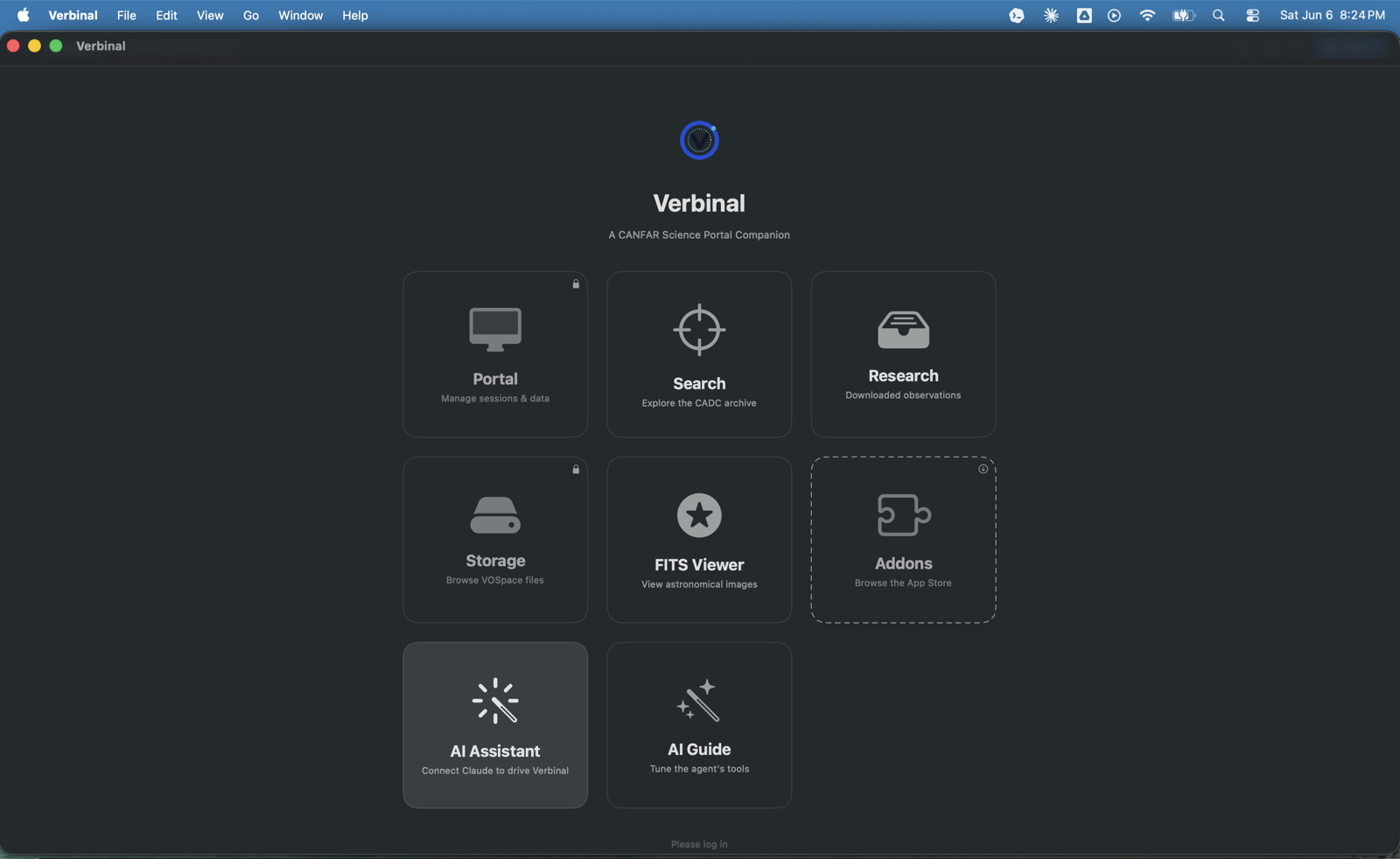
The new Welcome screen and its What Verbinal Can Do feature guide are the clearer way in. Every area is one tile away — Portal, Search, Research, Storage, FITS Viewer, Addons — with the Help and Go menus offering quick access to the same destinations. Two tiles are new this release: AI Assistant, which connects Claude to drive Verbinal, and AI Guide, which lets you tune what the assistant sees. So 1.2.5 keeps all of the above and adds two things: the AI bridge, and a clearer way in.
What's new in 1.2.5
The release concentrates on the AI assistant integration and on making the app easier to explore. At a glance:
AI assistant integration
- A built-in MCP server lets Claude Desktop and Claude Code work inside Verbinal — searching the archive, querying sessions, browsing storage, launching jobs, and starting or stopping compute and running code on your behalf.
- A guided setup wizard connects your client in a few clear steps, with one-click configuration and a built-in connection check.
- An AI Guide lets you review and fine-tune the description your assistant sees for each tool, and author your own read-only instruction tools. It is off by default.
- Remote compute control lets the assistant start and stop compute sessions and run code, with the cores and RAM you choose.
- More reliable connections: multiple AI clients can stay connected at once without interfering with each other.
Discoverability
- A new Welcome screen and a What Verbinal Can Do feature guide.
- Quick access to every area from the Help and Go menus.
- An AI Assistant tile on the home screen.
The release also brings a round of polish — smoother navigation, clearer Settings, more French localization, and the usual fixes — which the closing section returns to. First, the part most worth understanding: how the bridge works, and how it keeps you in control.
How the bridge actually works
Before the workflow, the mechanism — because researchers reasonably want to know where their data goes, and a small bridge is one you can audit. The short version: Verbinal does not provide or run an AI model, and it never sends your data to an AI vendor on its own. The intelligence is your own Claude, running under your own account. Verbinal is the bridge and the tools the assistant can call — nothing more.
Verbinal exposes its features over MCP. Your Claude client connects to Verbinal through a tiny helper binary bundled inside the app. The helper relays JSON-RPC messages over a local UNIX-domain socket that lives inside the app's own sandbox container on your Mac. That is the entire transport.
Two properties matter here. First, the helper has no network access of its own — it cannot reach the internet, only the local socket; it is a pipe and nothing more. Second, your AI client talks only to your local Verbinal app. Verbinal, in turn, talks directly to CANFAR and CADC over HTTPS using your own CADC login. Nothing about your archive, sessions, or storage is routed through a Verbinal server, because there is no Verbinal server to route it through.
This is built to be App Store-safe and sandboxed. In 1.2.5 the MCP server runs inside the app itself, needs no special entitlements, and the only data that ever leaves your Mac is your own authenticated calls to CANFAR and CADC, plus whatever you choose to send to your own AI provider through your own Claude client. Because the release handles multiple clients cleanly, a Claude Desktop window and a Claude Code session can stay connected at the same time without interfering with each other. It is a design you can reason about rather than simply trust.
The tool surface
Through that bridge, the assistant is offered more than fifty tools. They span the same ground the app does, so the assistant can do the work you would otherwise click through by hand:
- Status. App, session, service-health, and authentication status.
- Archive. CADC archive search, observation metadata (CAOM-2), data links, preview images, target and coordinate resolution, and VizieR cone search.
- Sessions. List, get, launch, session types, available images, recent launches, and session events.
- Storage. List a VOSpace path, get a node, read a file, download.
- FITS. Read a header, resolve world-coordinate systems.
- Research workspace. Downloaded observations, notes, saved queries.
- Headless jobs. Launch, list, get, logs, events.
- Remote compute. Start, stop, and run code — together with the proposal lifecycle that governs those actions.
The breadth is the point, but so is the boundary. Read-only tools such as search_observations or a status check return data directly. Tools that change state — like launch_session or run_code — go through approval. That split is the subject of the next two sections.
Setting it up: the wizard
The integration is off until you turn it on. You enable Allow external AI agents in Settings; until then the socket is closed and no assistant can reach the app. That is the first gate, and it is deliberately a manual one.
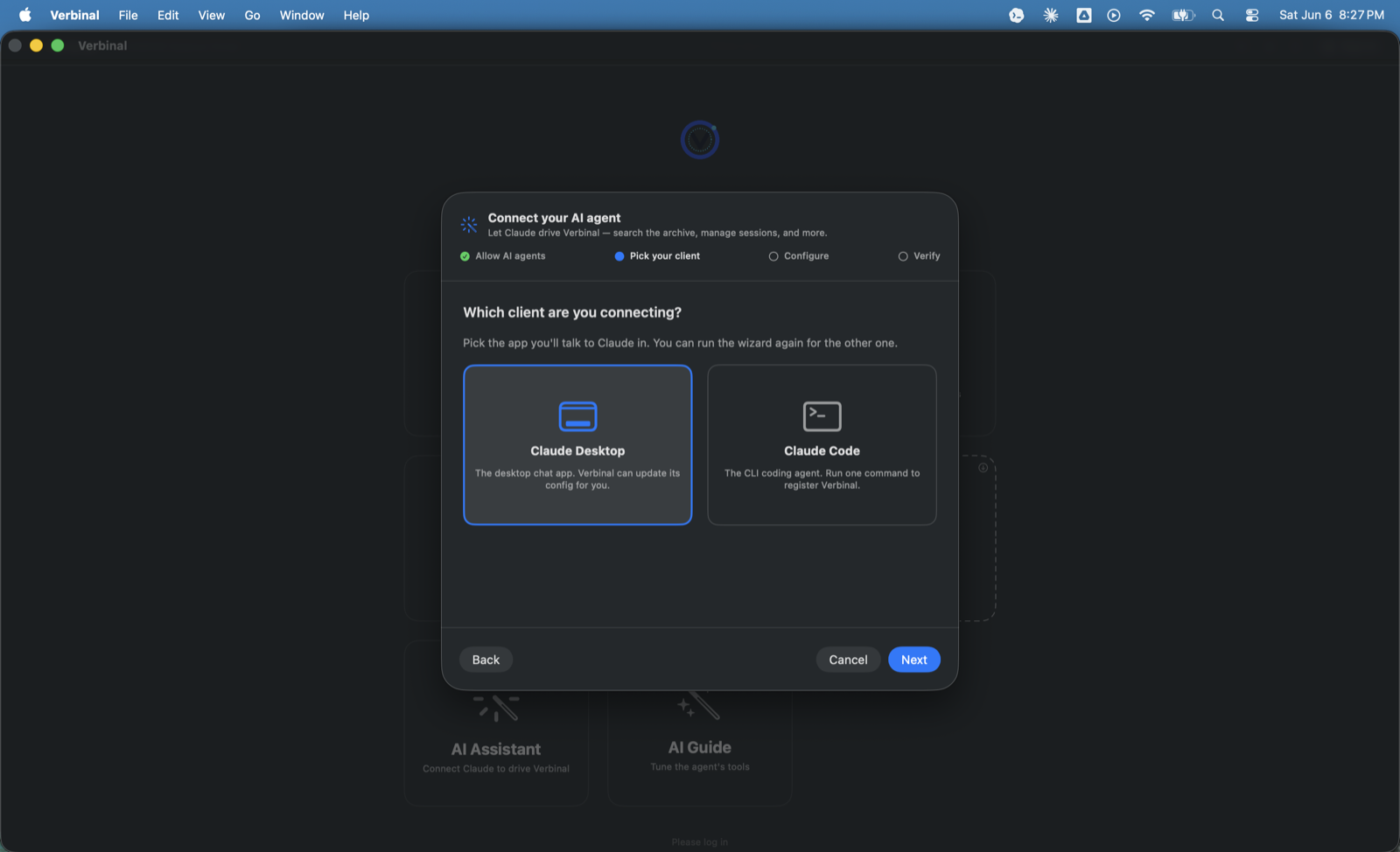
From there, the Connect your AI agent wizard does the wiring rather than leaving you to hand-edit config files. The steps are visible across the top — allow AI agents, pick your client, configure, verify — and it starts by asking which client are you connecting? with Claude Desktop and Claude Code as the two options:
- Allow AI agents. The switch that opens the local socket.
- Pick your client. Choose Claude Desktop or Claude Code. You connect one at a time; run the wizard again for the other.
- Configure. Verbinal applies the configuration in one click, so you do not touch a config file by hand.
- Verify. A built-in connection check confirms the client can reach Verbinal and see its tools.
When the check passes, your assistant reports back the way any well-behaved tool should.
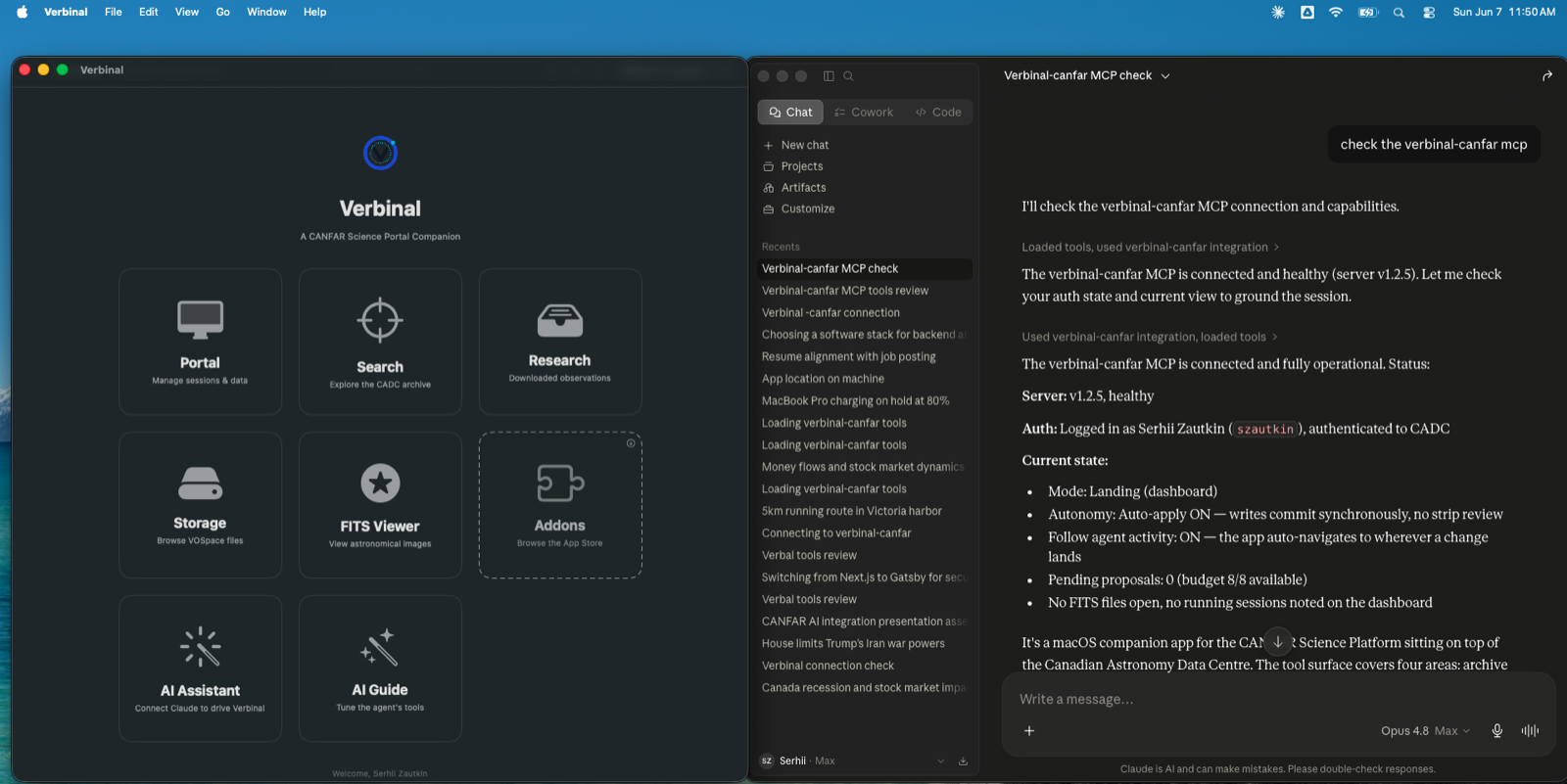
Here Claude has verified the connection and is listing healthy tools — the assistant confirming it can see Verbinal, and that the surface is live, before you ask it to do anything real. That confirmation step is worth slowing down for: you want to know the bridge is up and reaching CANFAR with your credentials before you start launching compute through it.
Read by default, write by proposal
This is the control model, and it is the reason an astronomer can hand work to an assistant without losing accountability for it. Four mechanisms keep you in charge, and none of them are buried.
Opt-in. As above, the master switch is Allow external AI agents in Settings, and its default state is closed. Until you flip it, no assistant can reach the app.
Read by default, write by proposal. The tool surface splits cleanly into two kinds, and the split is the whole safety story:
- Read-only tools return data directly. Search, status, metadata, listings — these answer immediately, because reading your own archive or inspecting a session changes nothing.
- Anything that changes state surfaces as a proposal you review. Launching a session, downloading a file, starting compute, running code, editing a note — each one comes back to you as a proposal to approve or reject. Destructive actions always need an explicit confirmation.
The assistant proposes; you commit. It does the fetching and the portal-clicking; you approve the moves that matter.
AI Guide. Off by default, it lets you decide exactly what each tool exposes — fine-tune the per-tool description the assistant sees, and author your own read-only instruction tools — so you control not just what the assistant can do but how each tool is framed to it.
Bounded remote compute. Letting an assistant start compute and run code is a deliberate opt-in, and a bounded one — you choose the cores and RAM it may use, so “run this for me” cannot quietly become a large allocation. The net effect is simple to state: permission gates keep you in control of every consequential action, while the assistant accelerates the busywork without taking the wheel.
One session, start to finish
Now the workflow this release was built for. Picture a single Claude conversation, with Verbinal connected and Allow external AI agents on. You are after recent imaging of a particular source. What follows is one realistic arc — adapt it to your own science; the shape is what matters.
Resolve and search. You give Claude the target by name. It calls a resolver to turn the name into coordinates, then runs search_observations against the CADC archive for matches in your bands of interest. The results come back as data — no approval needed, because nothing has changed. You scan them in the conversation, or open the same query in Verbinal's Search table to sort it yourself.
Confirm it is the right data. You ask for the details on the two most promising observations. Claude reads the CAOM-2 metadata and pulls a preview image so you can confirm, with your own eyes, that the footprint and instrument are what you want before you commit to anything heavier. Still all reads. Still your judgement on the result.
Launch the work session. Satisfied, you say: launch a Notebook for this. Now you cross the line from reading to acting, so Claude does not simply do it — launch_session comes back as a proposal: session type, image, resources. You glance at it, approve, and Verbinal launches it on Skaha. The session shows up in Portal with its status auto-refreshing, exactly as if you had launched it by hand, because you effectively did — you signed off on it.
Stage the data. You ask Claude to bring the confirmed observations into VOSpace and lay them out for the reduction. Browsing and listing are reads; each download and write is a proposal. You approve the stage. The files land where you expect, and you can watch your quota in Storage as they arrive.
Sanity-check on compute. Before committing to a full reduction, you want to know your approach holds. You ask Claude to run a short snippet on remote compute — within the cores and RAM you granted. run_code is a write, and a consequential one, so it surfaces as a proposal with the resources spelled out. You approve it, the snippet runs, and you read the result in the conversation. If it looks wrong, you have spent a snippet, not an afternoon.
Keep the keepers. The two observations earned their place. You ask Claude to save them, plus a note on what you found and the query that found them, into the Research workspace — each write a proposal you approve. Next week the observations, the notes, and the saved query are waiting, and the train of thought picks up where it left off.
Across the whole arc you never left your Mac, never opened the web portal, and never lost the question you started with. The assistant did the fetching, the portal-clicking, and the boilerplate. You approved the moves that mattered — the launch, the downloads, the compute — and read every result with the same scrutiny you always would.
The rest of what 1.2.5 polished
Around the headline work, the release sands down the edges of everyday use. Navigation and transitions are smoother and more cinematic throughout. Settings have been reorganised, so what you are looking for is where you would expect it. The French interface gains additional localization. And there is the usual round of bug fixes and stability improvements that a point release earns its number with.
None of it is loud. It is the kind of polish you notice as an absence of friction rather than a feature you point at.
Privacy, source, and how to get it
The privacy posture is unchanged by the AI work, which is the point. Verbinal collects no data, runs no analytics, and ships no telemetry. Your CADC credentials live in the macOS Keychain. Network traffic goes directly to CANFAR and CADC over HTTPS — no third-party servers. The MCP bridge does not weaken any of that: the helper has no network of its own, the socket stays closed until you open it, and the only data leaving your Mac is your own authenticated calls to CANFAR and CADC and whatever you send to your own Claude client.
Verbinal for macOS is free and open source under the Mozilla Public License 2.0, with the full source at github.com/szautkin/canfar-macos — so the architecture described here is something you can read rather than take on faith. Requirements: macOS 14 (Sonoma) or later, a free CANFAR account from canfar.net, and — if you want the AI integration — your own Claude Desktop or Claude Code on the same Mac. Download it from the Mac App Store, turn on Allow external AI agents when you are ready, run the wizard, and try the session above with a target of your own. The first time you keep a whole train of thought intact from name to notes, the old tabs stop feeling necessary.
Get Verbinal for macOS
Free and open source. macOS 14 or later and a free CANFAR account. Bring your own Claude Desktop or Claude Code for the AI integration.